Quick Start: Tradomate Screener
The Screener in Tradomate is a powerful tool designed to help traders quickly and accurately identify the best market opportunities. With customizable filters that combine Pricing data, Technical indicators, Fundamental metrics, and News, the Screener helps you find stocks that match your exact trading criteria.
Instead of manually scanning charts or tracking hundreds of stocks, you can define your strategy in seconds and instantly generate a focused list of matching opportunities.
Powered by Tradomate AI
Section titled “Powered by Tradomate AI”Tradomate AI adds a smarter and faster way to build screeners.
Instead of manually selecting indicators, parameters, or formulas, you can simply describe your idea in plain English.
Examples:
- Upward trending stocks
- Stocks where Close > Open
- Companies in news with PE less than 30
- RSI above 50 in Nifty 500 stocks
Tradomate AI automatically converts your text into structured screening rules.
These rules are displayed in a clear tree-based format, giving you full visibility and allowing you to edit, refine, or expand conditions anytime.
To help you get started even faster, Tradomate also displays dynamic condition suggestions below the AI input bar based on current market activity. Simply click any suggestion to instantly add it as a screening condition.
This makes the Screener useful for both beginners who want speed and experienced traders who want flexibility.
Walkthrough Video
Section titled “Walkthrough Video”Watch the walkthrough below to see how to build a stock screen from start to finish.
Step-by-step guide for creating stock screens
Section titled “Step-by-step guide for creating stock screens”Login and Navigate to Screener
Section titled “Login and Navigate to Screener”Visit the Tradomate platform and log in using your credentials.
Once logged in, navigate to the Screener section from the top navigation bar.
Explore the Screener Homepage
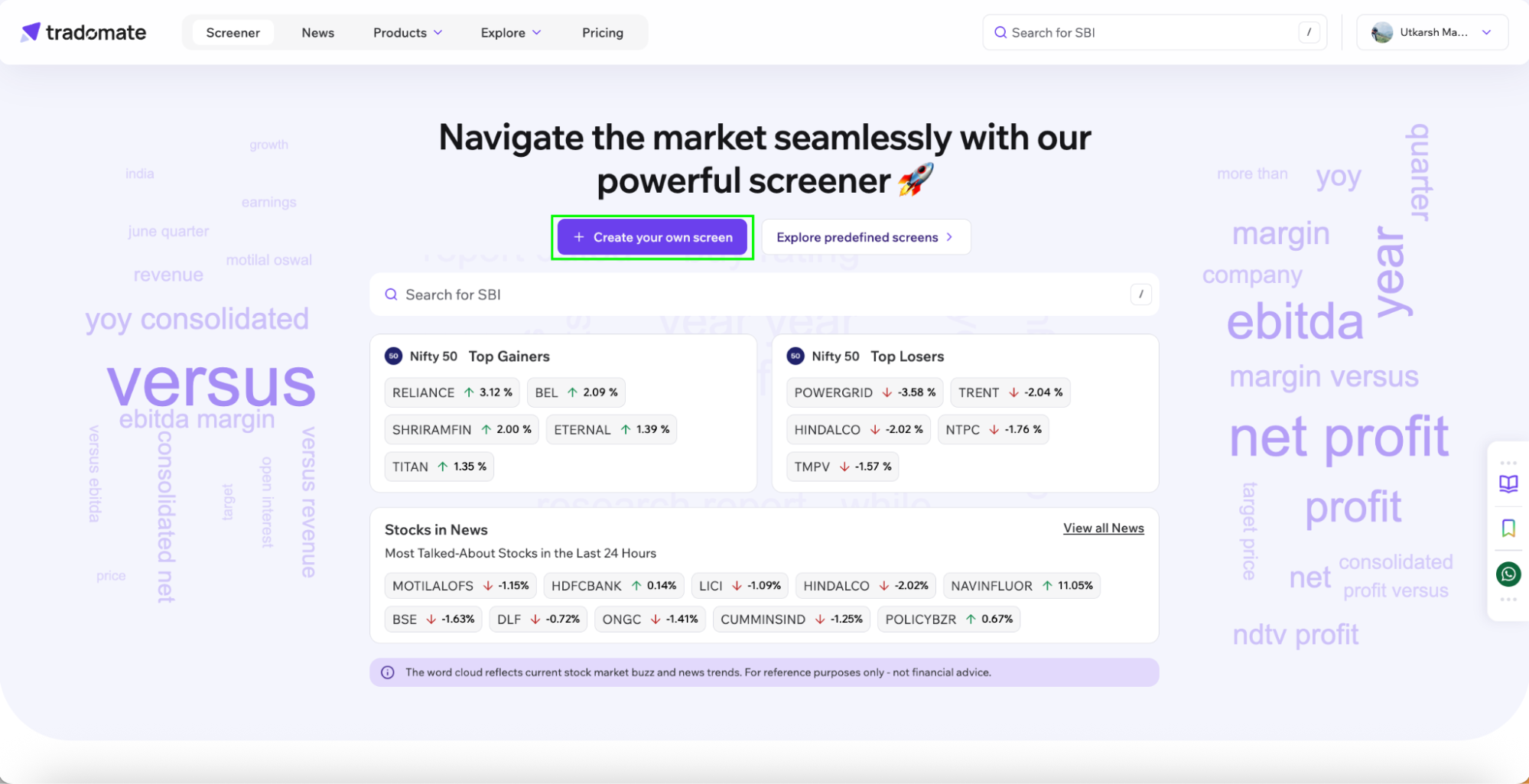
Section titled “Explore the Screener Homepage”The Screener homepage gives you a quick view of current market activity, including:
- Top Gainers and Top Losers in Nifty 50
- Stocks currently in News
- Media Talk via Wordcloud
- Predefined screens across Technical, News and Fundamental strategies among others
If you want ready-made ideas, click Explore Predefined Screens.
Custom Screen Creation
Section titled “Custom Screen Creation”To create a custom screen, click on Create your own screen on the screener landing page.
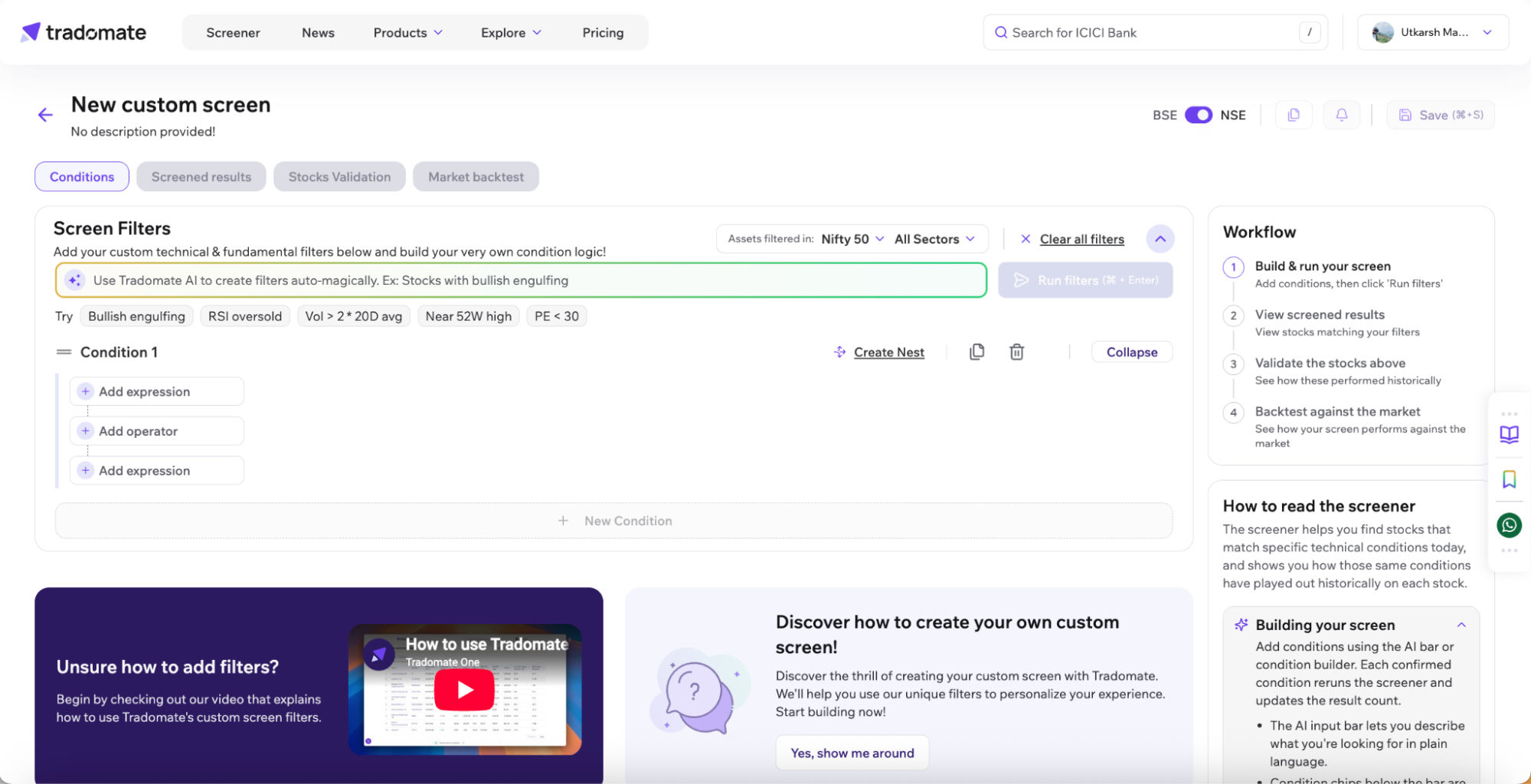
You can create your screening rules by simple text-based prompts or adding your own filter, combining Pricing data, Technical indicators, Fundamental metrics, and News.
Explore the Screener Workspace
Section titled “Explore the Screener Workspace”The Screener is designed as a single, scrollable workspace that guides you through the complete screening journey, from building your screen to validating and backtesting your strategy.
The workspace includes:
- Tradomate AI for creating screens using natural language.
- Dynamic condition suggestions to help you get started quickly.
- A condition builder for creating and refining screening logic.
- Stock Universe and Sector filters.
- A Workflow panel that tracks your progress through the screening process.
- A How to Read this Screener section that explains each stage of the workflow.
As you scroll through the page, the navigation automatically highlights your current section, making it easy to move between building your screen, viewing screened results, validating stocks, and running a market backtest.
Build Your Screen
Section titled “Build Your Screen”To create a custom screen, simply start adding your screening conditions.
There are two ways to build your screen.
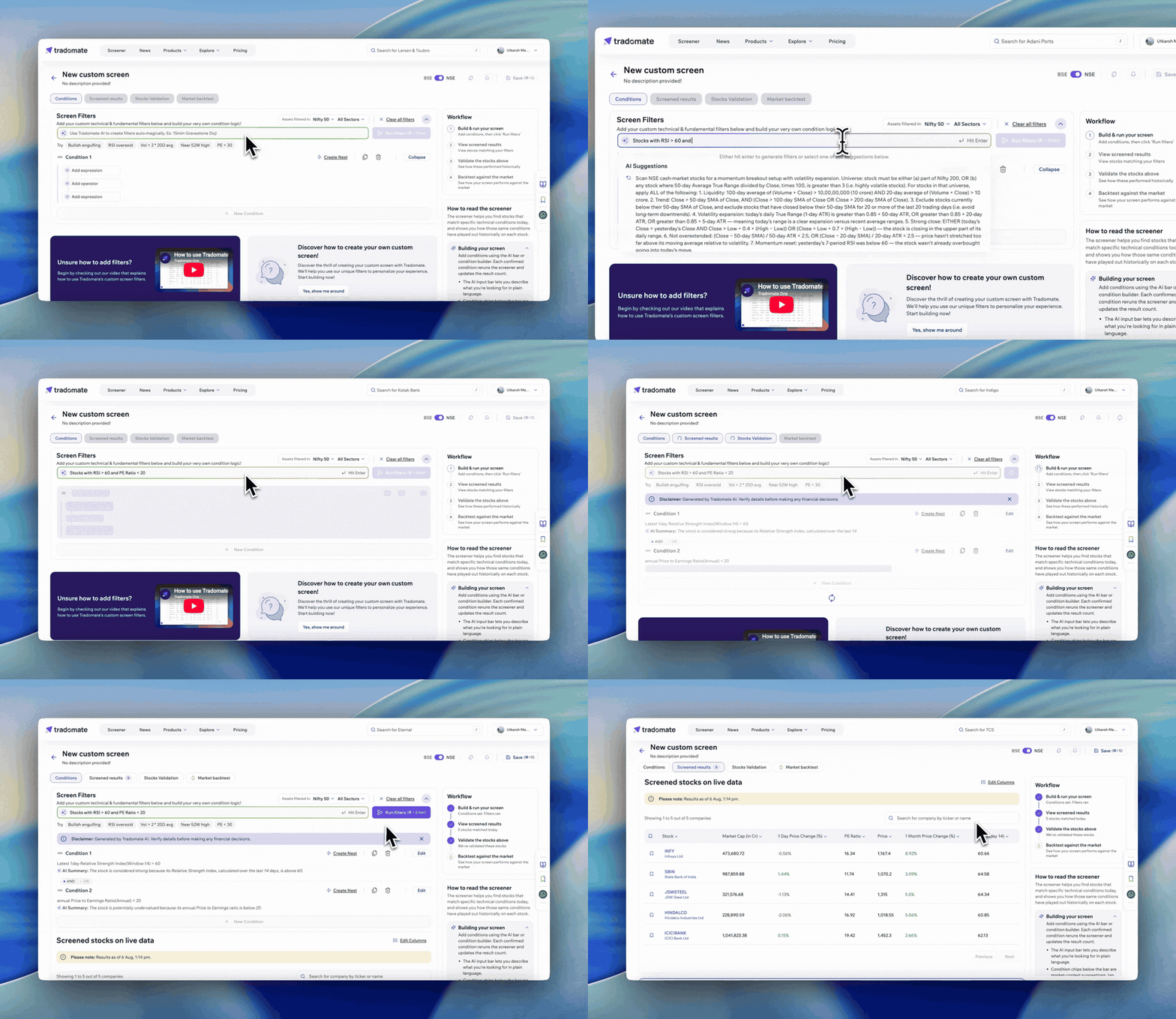
Option A: Use Tradomate AI
Section titled “Option A: Use Tradomate AI”Type your idea in simple text and press Enter.
Example:
“Companies in Nifty 500 stocks in news and having DII holding at an all-time high”
Tradomate AI automatically converts your prompt into structured screening conditions.
You can continue adding prompts later to further refine your screen.
Option B: Build Manually
Section titled “Option B: Build Manually”Use Add Expression to manually create filters using:
- Technical Indicators
- Fundamentals
- Financial Ratios
- Pricing Data
- Price Actions
- News
- Deals
- Mathematical Functions
This gives you precise control over your screening logic.
Choose Your Stock Universe
Section titled “Choose Your Stock Universe”Before building your strategy, select the market universe you want to scan.
Examples include:
- All Stocks
- All Indices
- F&O Stocks
- Nifty 50
- Nifty 500
- And many more
You can also screen directly on your personal watchlists or narrow results further using Sector Filters such as Banks, Automobile, Aerospace & Defence, Agro Chemicals, Air Transport Services, and many more.
Choosing the right universe helps you focus only on stocks relevant to your strategy.
Use Header Controls
Section titled “Use Header Controls”The Screener dashboard includes quick actions to help manage your workflow.
These include:
- BSE / NSE Toggle to switch exchange pricing views.
- Save to store your screener.
- Duplicate Screen to create a copy and test variations.
- Alert to monitor opportunities based on your screener.
- Market Backtest to evaluate your strategy across the selected stock universe.
The Duplicate Screen and Alert options become available after your screener has been saved.
Refine and Expand Your Screen
Section titled “Refine and Expand Your Screen”Once conditions have been created, you can continue improving your screen using:
- Edit to modify a condition.
- Duplicate to copy an individual condition.
- Delete to remove a condition.
- + New Condition to add additional filters.
- Create Nest to group conditions using advanced logic.
- Collapse conditions for a cleaner workspace.
As you add more filters, your results become increasingly specific.
For example, if your first screen returns 25 companies, you can narrow it further by adding filters such as:
- Positive sentiment news
- Medium to high impact news
- PE less than 30
The Screener is designed to be iterative, build, refine, and improve your strategy over time.
Running Your Screen
Section titled “Running Your Screen”Every time you add a condition, Tradomate automatically refreshes your screener and updates the matching stocks in the background.
If you prefer, you can also click Run Filters at any time to manually rerun your screen.
As soon as your screen is updated, Tradomate automatically performs Stocks Validation on the latest matching stocks using a default lookback of 50 candles, helping you quickly understand how your current results have historically performed.
Follow the Workflow
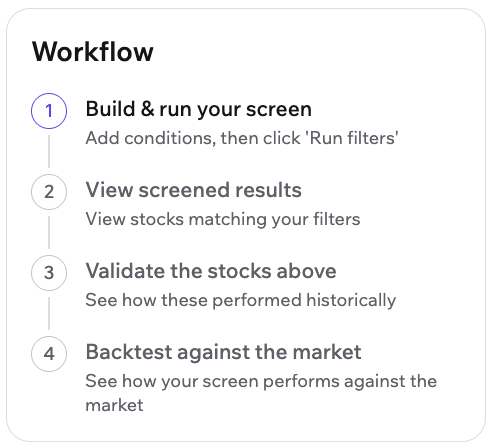
Section titled “Follow the Workflow”The Workflow panel on the right keeps track of your progress as you move through the screening process.
The workflow consists of four steps:
- Build & Run your Screen
- View Screened Results
- Validate the Screened Stocks
- Backtest against the Market
As you complete each step, the workflow updates automatically, helping you progress naturally from creating a screen to validating and backtesting your strategy.
Below the workflow, the How to Read this Screener section provides additional guidance to help you understand each stage of the process.
Understanding Screened Results
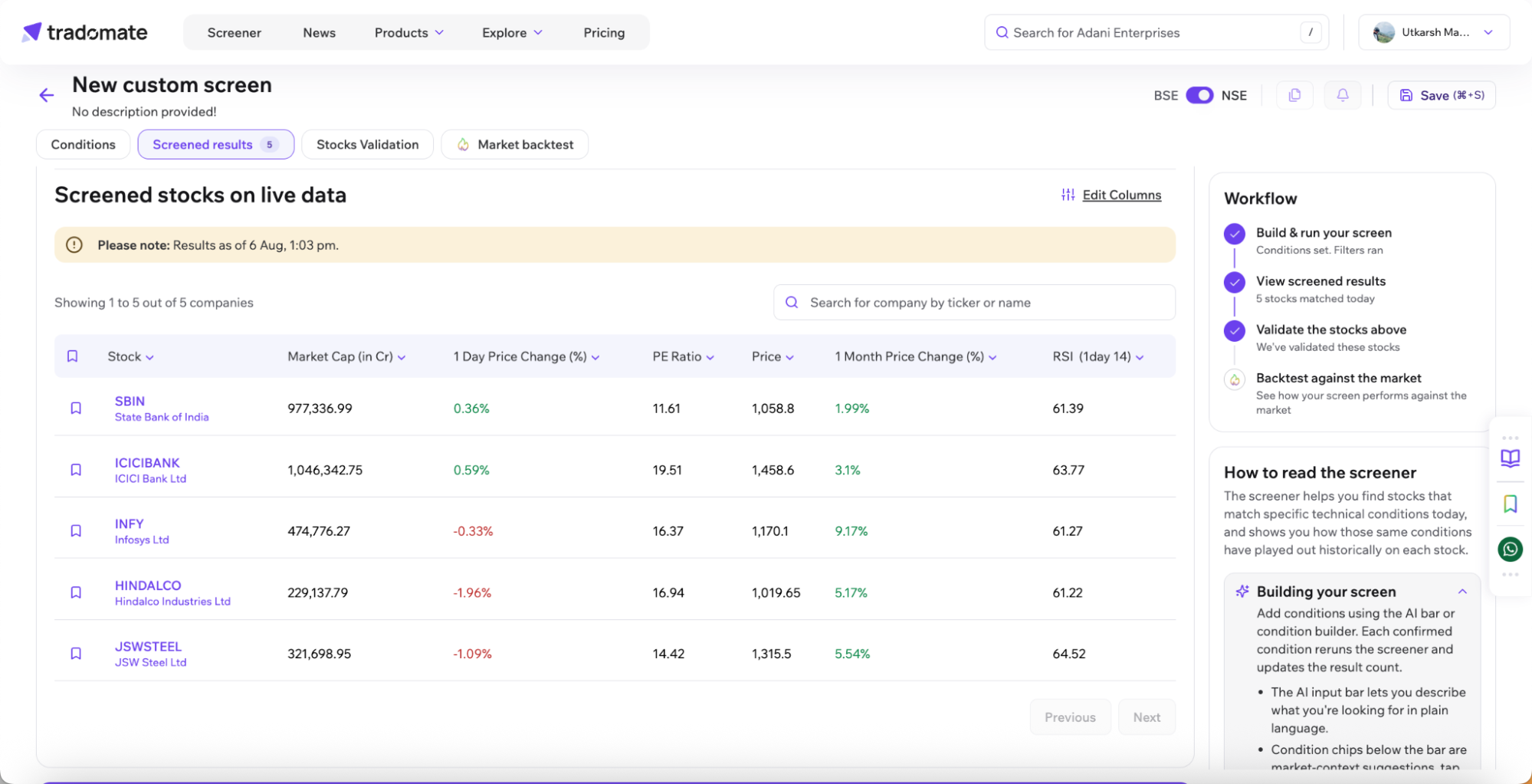
Section titled “Understanding Screened Results”The Screened Results section displays all stocks matching your active screening conditions.
Depending on your selected columns, you can view metrics such as:
- Stock Name
- Market Cap
- Price Change
- Open / Close
- Custom Metrics
You can also:
- Sort results by different columns.
- Edit displayed columns.
- Search by stock name or ticker.
- Add stocks to your watchlist.
- Click any stock to open its Company Page.
If no stocks match your conditions, simply broaden or adjust your filters and continue refining your screen.
You can also collapse the Screener panel to focus more clearly on your results.
Save Your Screen
Section titled “Save Your Screen”Once satisfied with your setup, click Save.
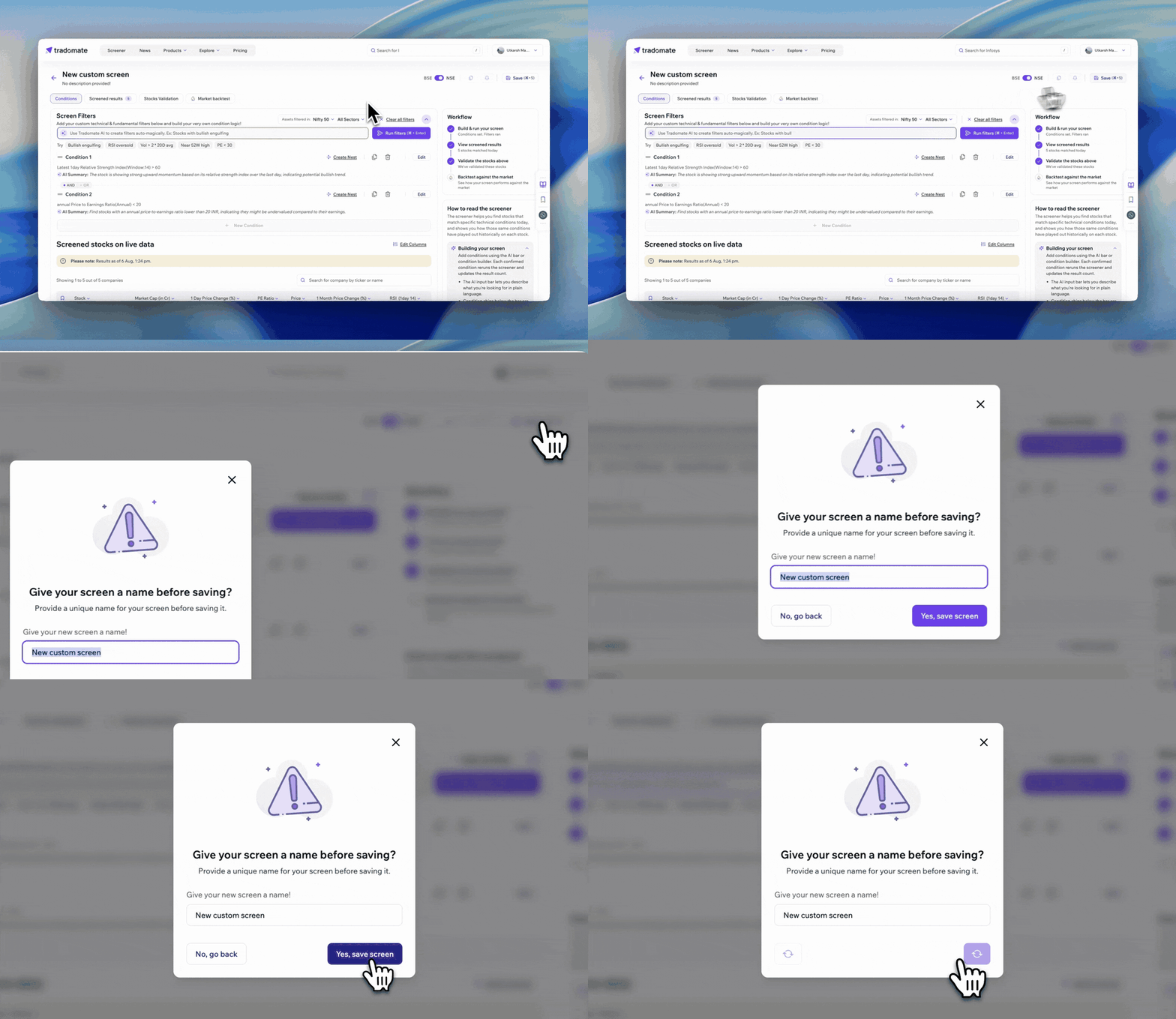
Saved screeners can be:
- Reused anytime.
- Edited later.
- Duplicated into new versions.
- Used for Alerts.
- Used for Market Backtesting.
What to Do Next
Section titled “What to Do Next”Once you’ve built a strong screen, the next step is validation.
Use Stocks Validation to check how today’s screened stocks have historically performed, and Market Backtest to validate the strategy itself across a broader market universe.
Take the first step toward helping you #tradeIntelligently!